How To Set Messages Within a Time Window
A user posed a question they had a text message smart plan between 8am and 10pm and didn’t want anything going out after 10pm because the first message was set to immediately. So how to prevent this and run these messages only during a specified window of time. There is a simple solution to do this right in the action step of the smart plan.
All right, so I set up a test smart plan just to show you visually what you can do. Again, you can do this right in Lofty. It’s super simple to do. So put your plan name, you put your buyer (your lead type), pick your scope. If you’re on a team or Enterprise account, make sure you select the My Plan Library, set your trigger newly created in the new lead pipeline.
Here are the actions. So in the immediate option, then 10 minutes, two minutes, 30 minutes. The auto text immediately between 8 AM to 10 PM. Second one, you’re going to wait 10 minutes and again, fire between 8 AM and 10 PM.
Wait two minutes after that again, fire between eight and 10. And lastly, wait 30 minutes fire between eight and 10. Put the timing to whatever it is. It doesn’t matter what it is. Eight to eight, 10 to 10, whatever you want. What’ll happen here in the logic is when the lead registers, if it is between these hours here, you set 8 a.m. and 10 p. m. It’s in YOUR time, not the lead’s time, this will fire out. So let’s say somebody registers at like 9:55pm. This text message will go out, because it’s still within that window.
So 9:55pm registration, immediate text goes out. This second one will not fire until 8 o’clock the next morning. Then the rest of the campaign will fire on that same day, basically on day two. So you’re not going to get anything after 10 p. m. It will wait until this previous step is compliant with these settings here.
So if somebody registers at 9 55 p. m. This goes out immediately. This is going to be past 10. Now we’re at 10. 05. This is set to go up between 8 and 10. So this step will not fire until 8 a. m. The next day. And then the campaign will continue. So when this, when step two fires, then the timing will start for step three.
So two minutes after this is sent, it’ll fire between these hours. That’s all you got to do. It’s really simple. The immediately step and the wait step both have this within the window. Just use that window, set your timing and you’re fine.
If you have any questions on this topic, comment below and I’ll be happy to answer.
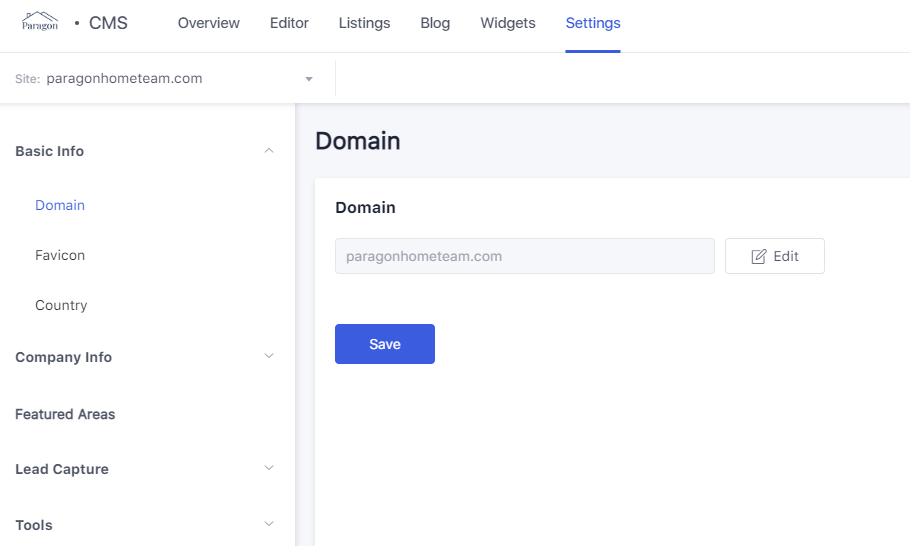
Click on Website on the top of the CRM, then Settings in the CMS manager. It will open to this view. This is where you change your domain.
Do this AFTER you have MLS approval for the IDX feed to the new domain!!
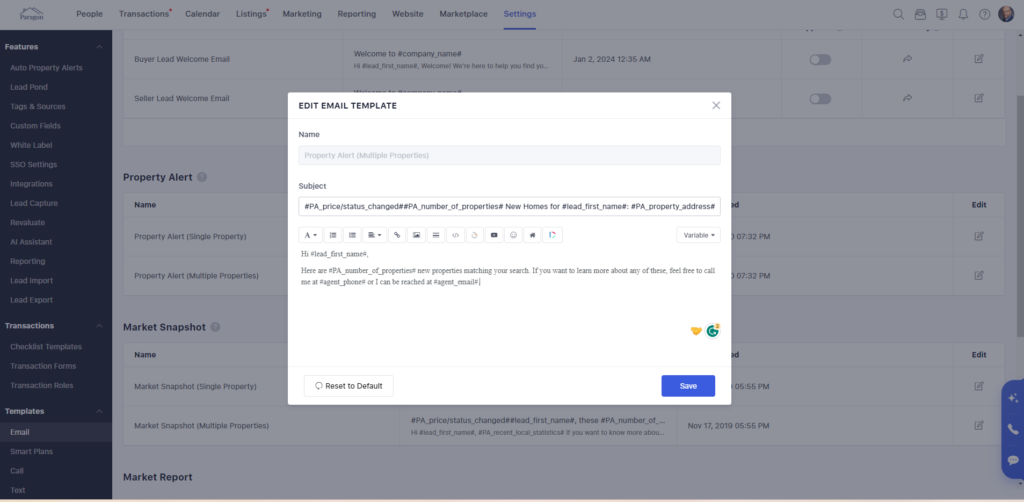
In the CRM Settings, then Email under Templates, change the language in the single and multiple property alert by adding a line to the template. This will give your database a heads up of the change coming soon.
Sample text: Just a reminder on DATE, I/we will be changing my/our website domain name to NEW DOMAIN. We are rebranding and offering a new look and better experience for our clients.
If you use it as a hyperlink, redirect to your current site. Otherwise just leave it as plain text such as “domain.com”.
Interesting points about balancing entertainment & wellbeing! Platforms like phtala app are showing a great commitment to responsible gaming, offering tools for self-assessment before you even start. It’s a smart approach!